
Odoo Inventory Management
Odoo inventory management software now goes one step further in warehouse optimization. With Odoo, you have integrated inventory for your regular sales and your website sales. Odoo ensures automatic replenishment of your inventory by purchasing products or suggesting that they be manufactured or assembled.
A complete system, including a scanning solution for your warehouse. Below are the improvements in Odoo version 15.
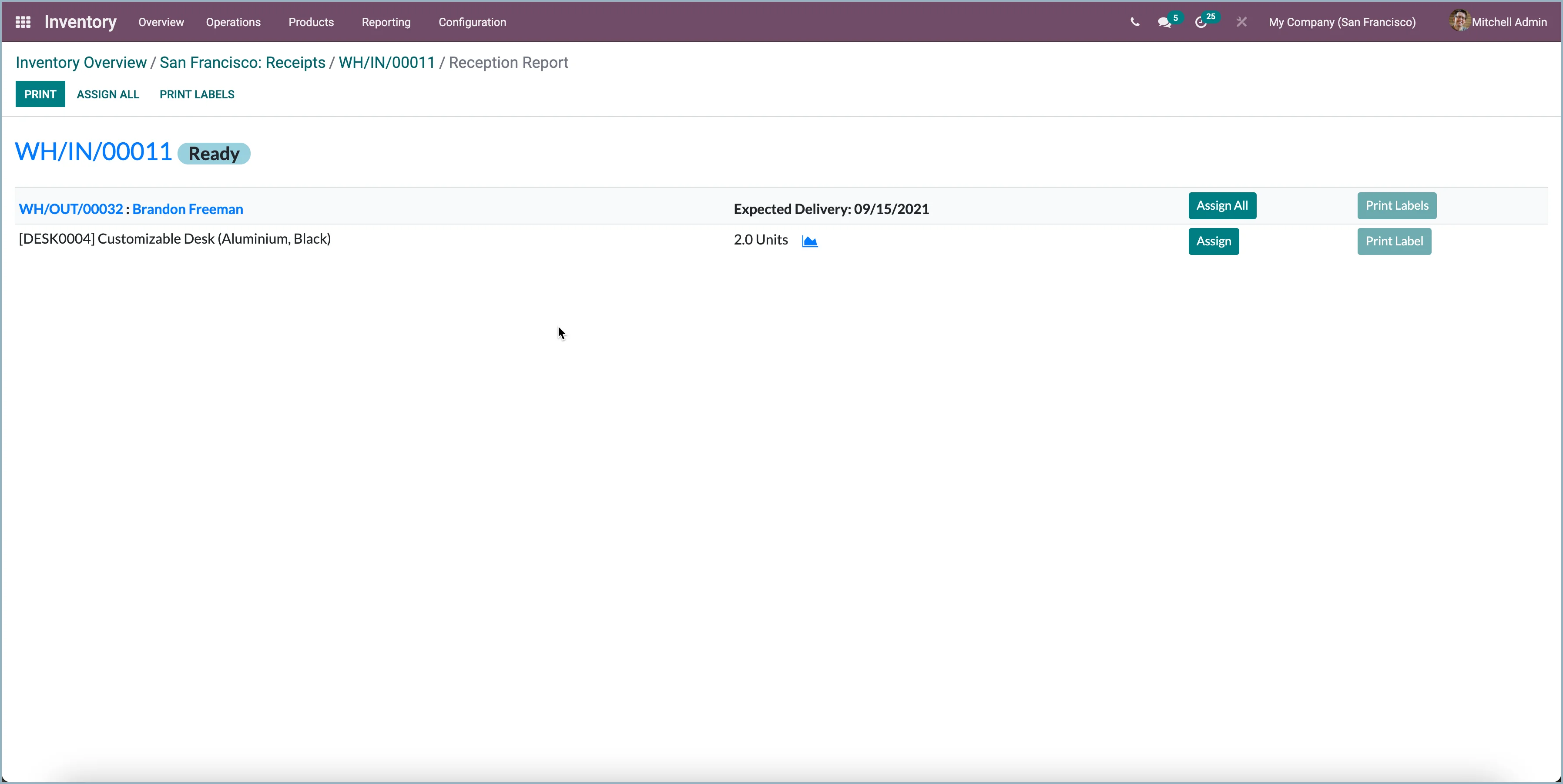
New receipt report for incoming transfers
Assign received stock directly to outgoing deliveries? Stock that was not purchased specifically for a sale can now still be assigned to a sales delivery by applying a dynamic MTO rule. The report also makes it possible to print labels directly with information about which delivery this receipt is assigned to. You can activate the report by creating a new setting.
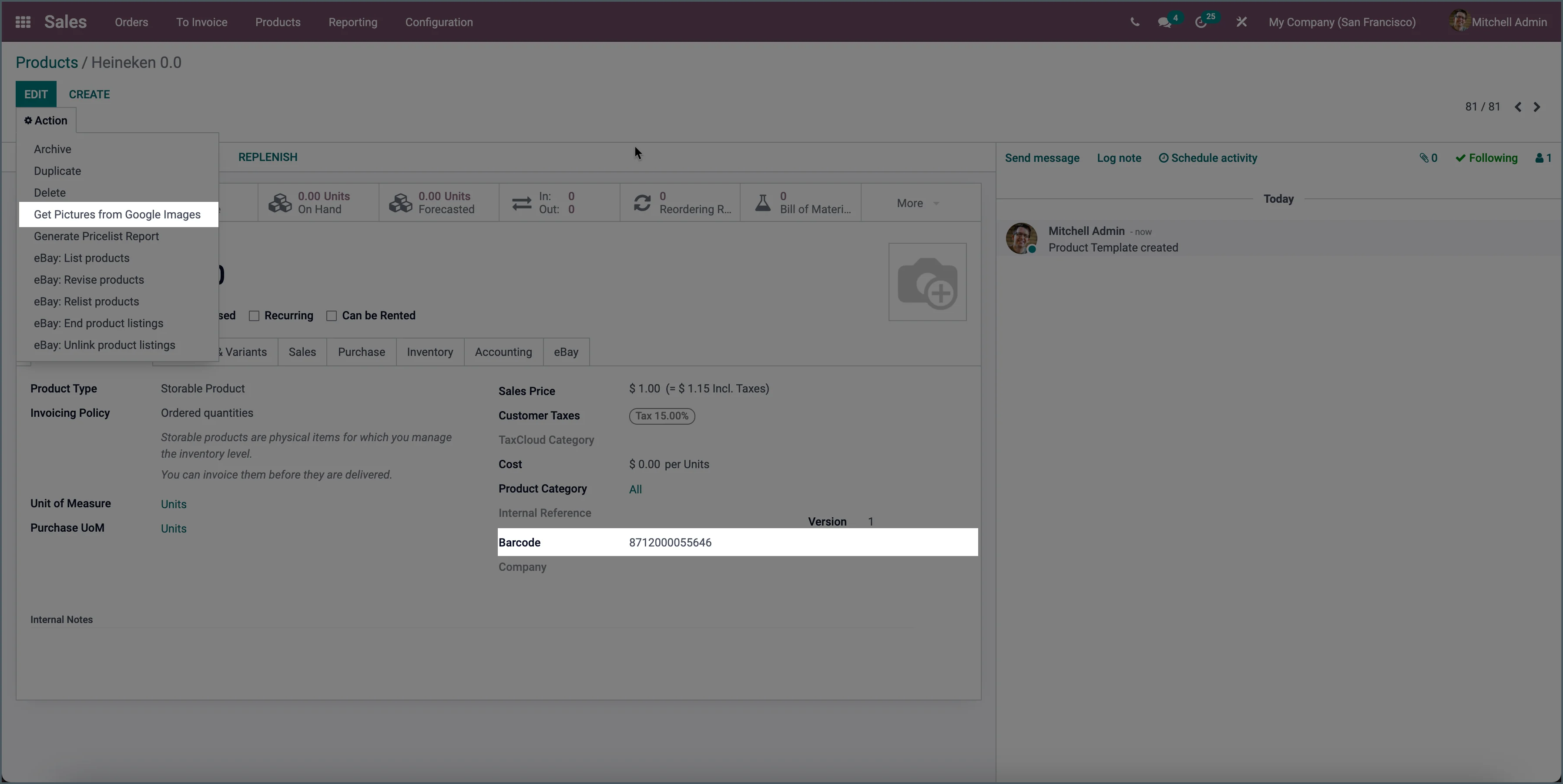
Retrieve product images by scanning a barcode
You can now retrieve product images by scanning the product barcode. If the barcode is known, Odoo retrieves the product image from Google Images. You can also activate this manually on a product via the action button.
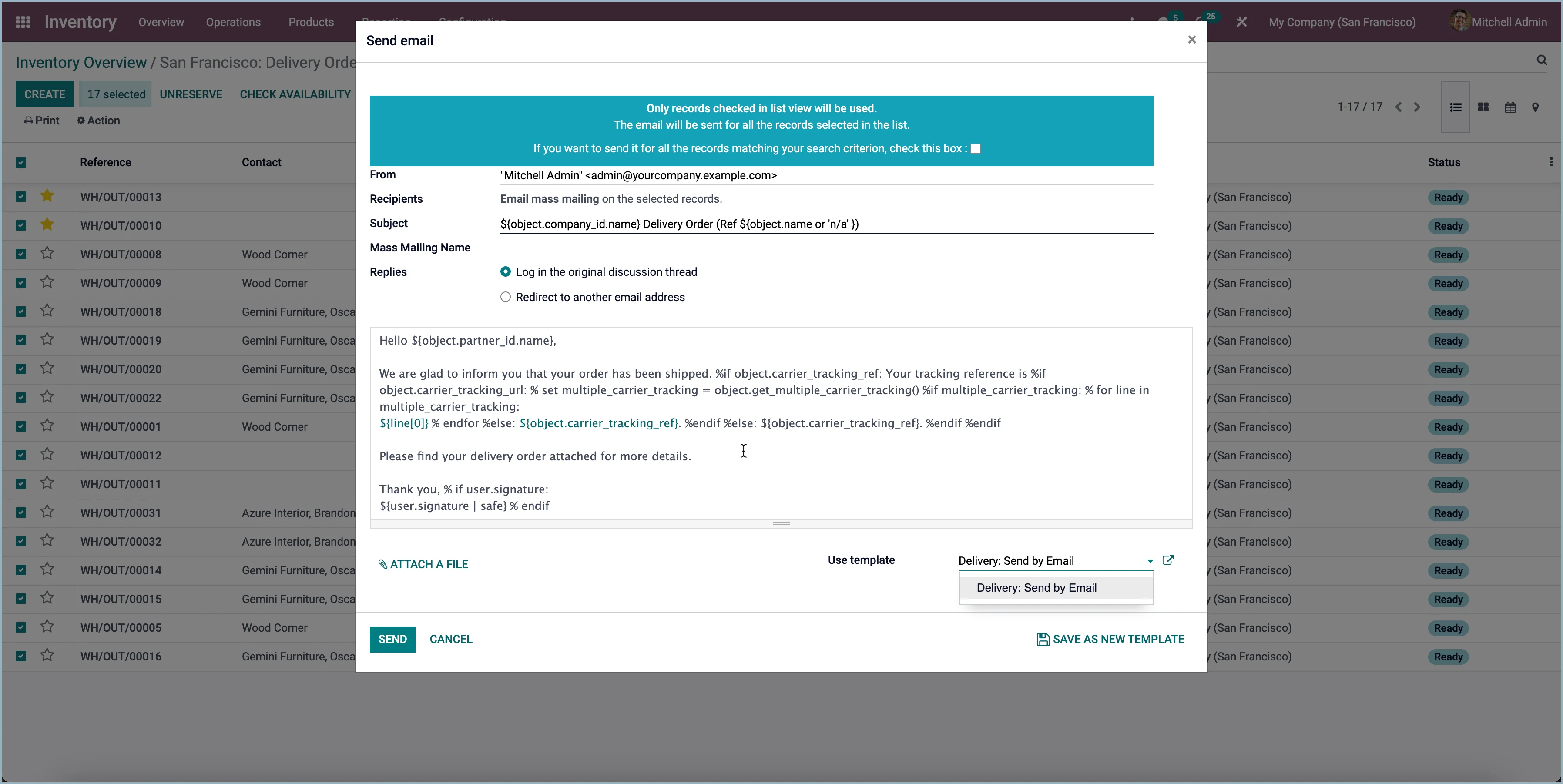
Bulk mailing from deliveries
If it is necessary to send an email to multiple customers at once, for example in case of a delivery delay, this can now be done from the warehouse. Select all deliveries and choose ‘Send email’.
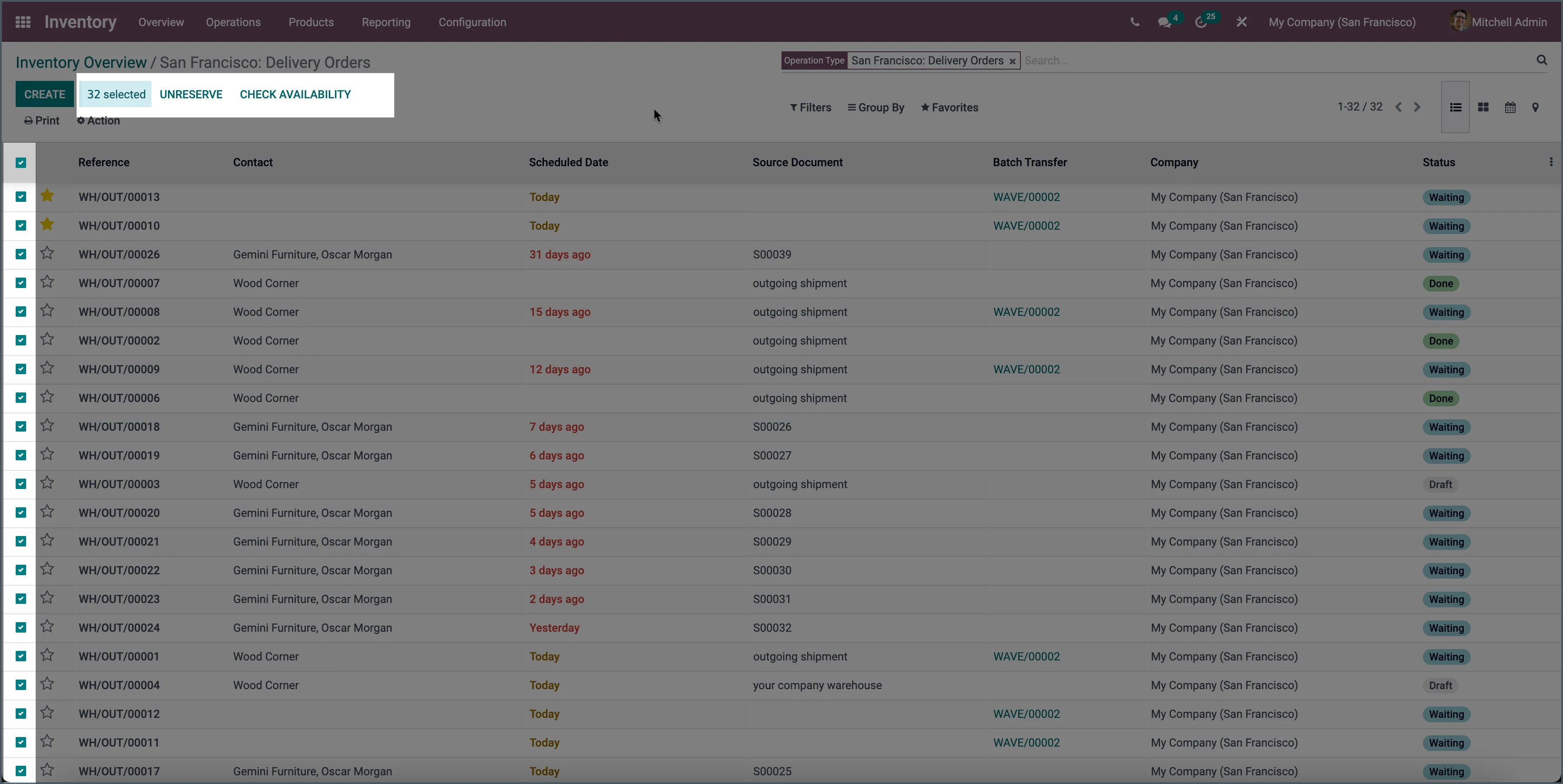
Reserve stock in batch
You can now have stock checked and reserved for multiple deliveries at once, instead of having to do this per delivery as in earlier versions.
Wave order picking
You could already do batch order picking. Now you can also pick orders via ‘Waves’.
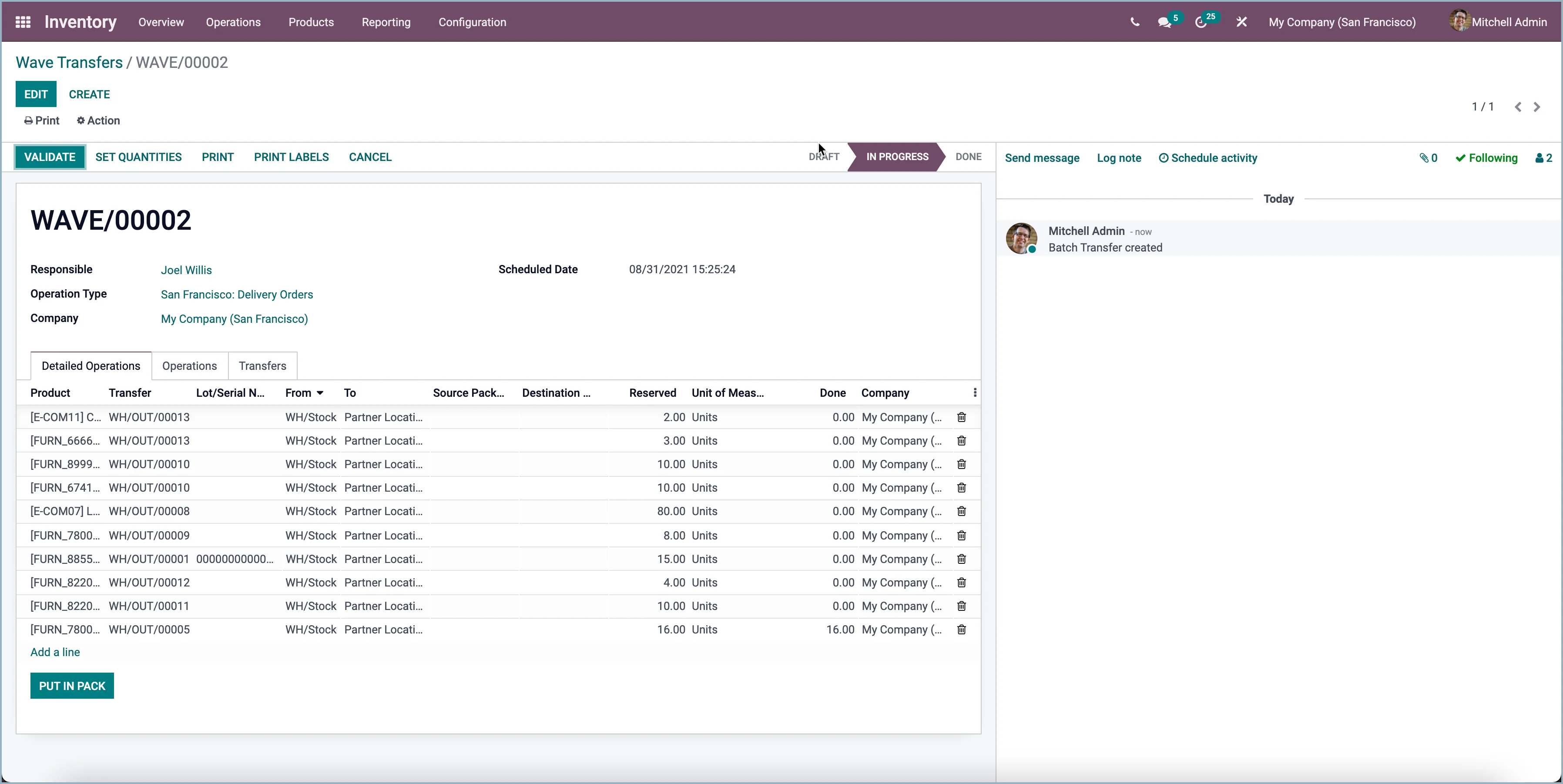
Improved inventory counting
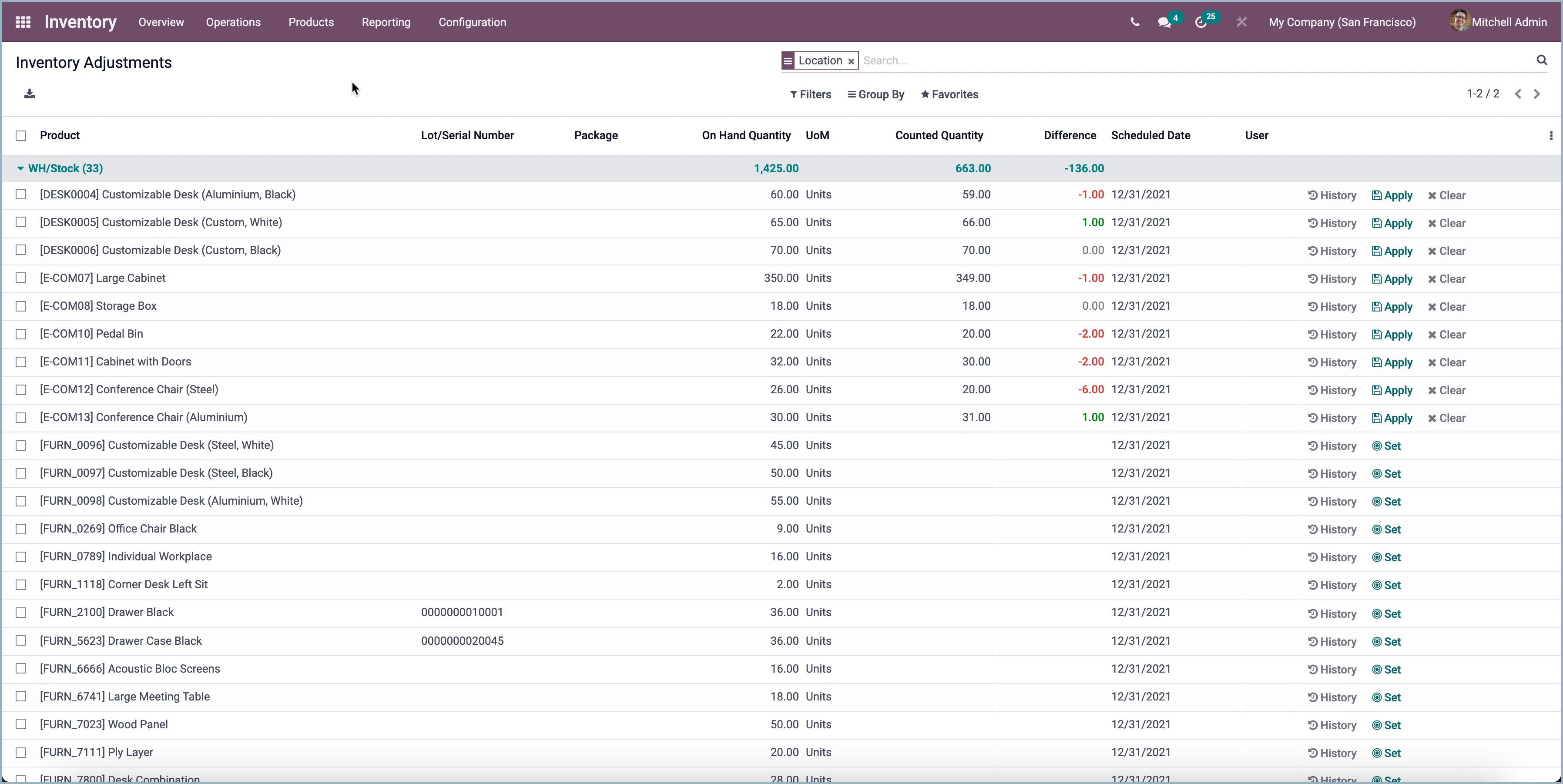
Inventory counting has been completely changed. When you open the counting screen, you immediately see all products, after which you can filter and group them yourself. A history of all counts is maintained. In the event of a conflict during counting, caused by interim stock adjustments, you now have the option to determine how to resolve the conflict. In the inventory settings, you can set when the annual inventory count must be carried out, so that Odoo will remind you of it.
Use of packaging
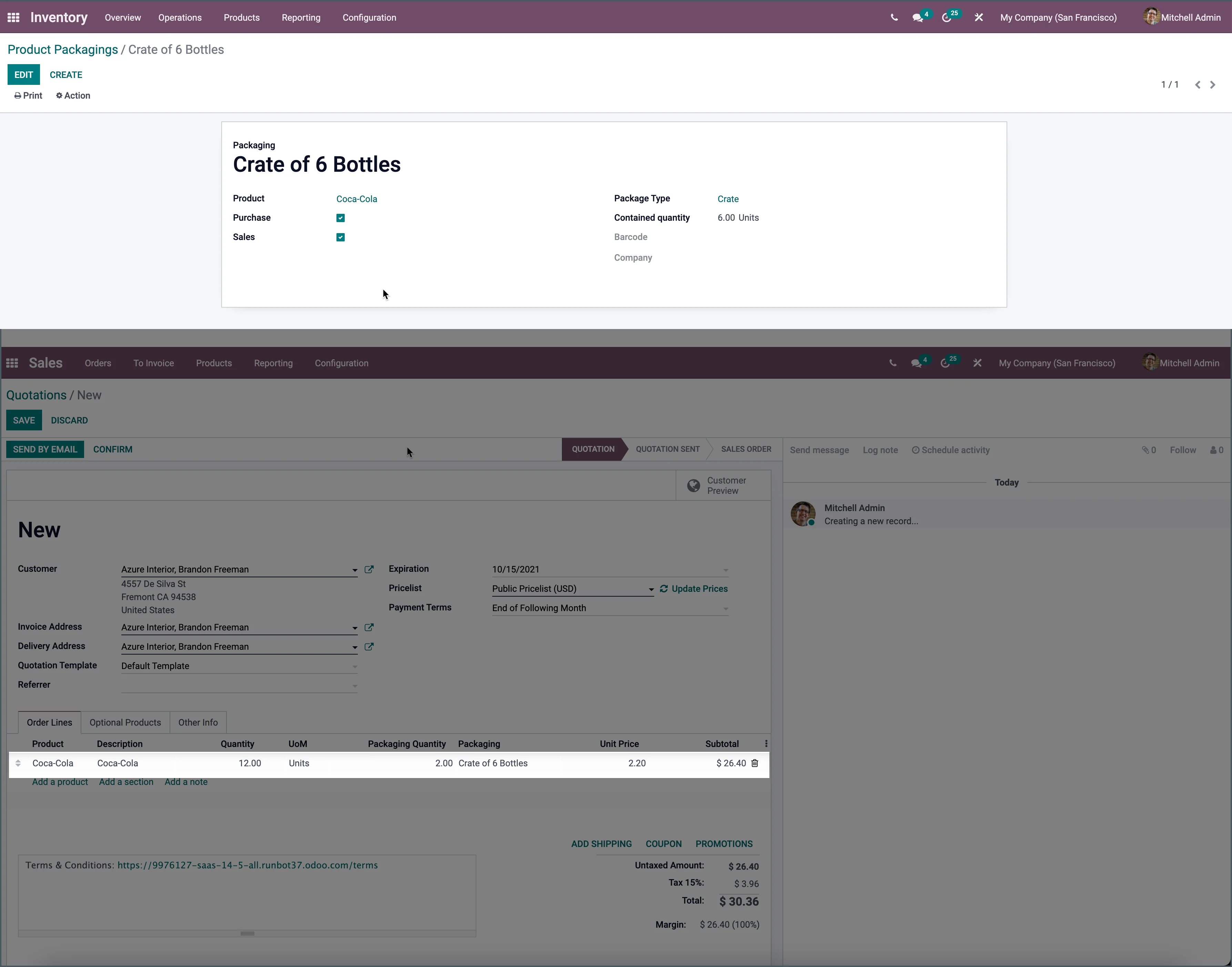
The use of packaging in Odoo has also been improved. For packaging, you specify how many products are sold in one package. For example, six bottles in a crate. It is now possible to:
- Add packaging to sales and purchase order lines.
- Pass packaging on purchase and sales order lines to a manufacturing order.
- Add a packaging type with dimensions to packaging.
- Per operation type, deliver only full packages or also a partially filled package.
- Suggest the correct packaging based on the entered quantity on a purchase or sales order.
- Set a specific route per package.
Store your stock smartly with storage categories.
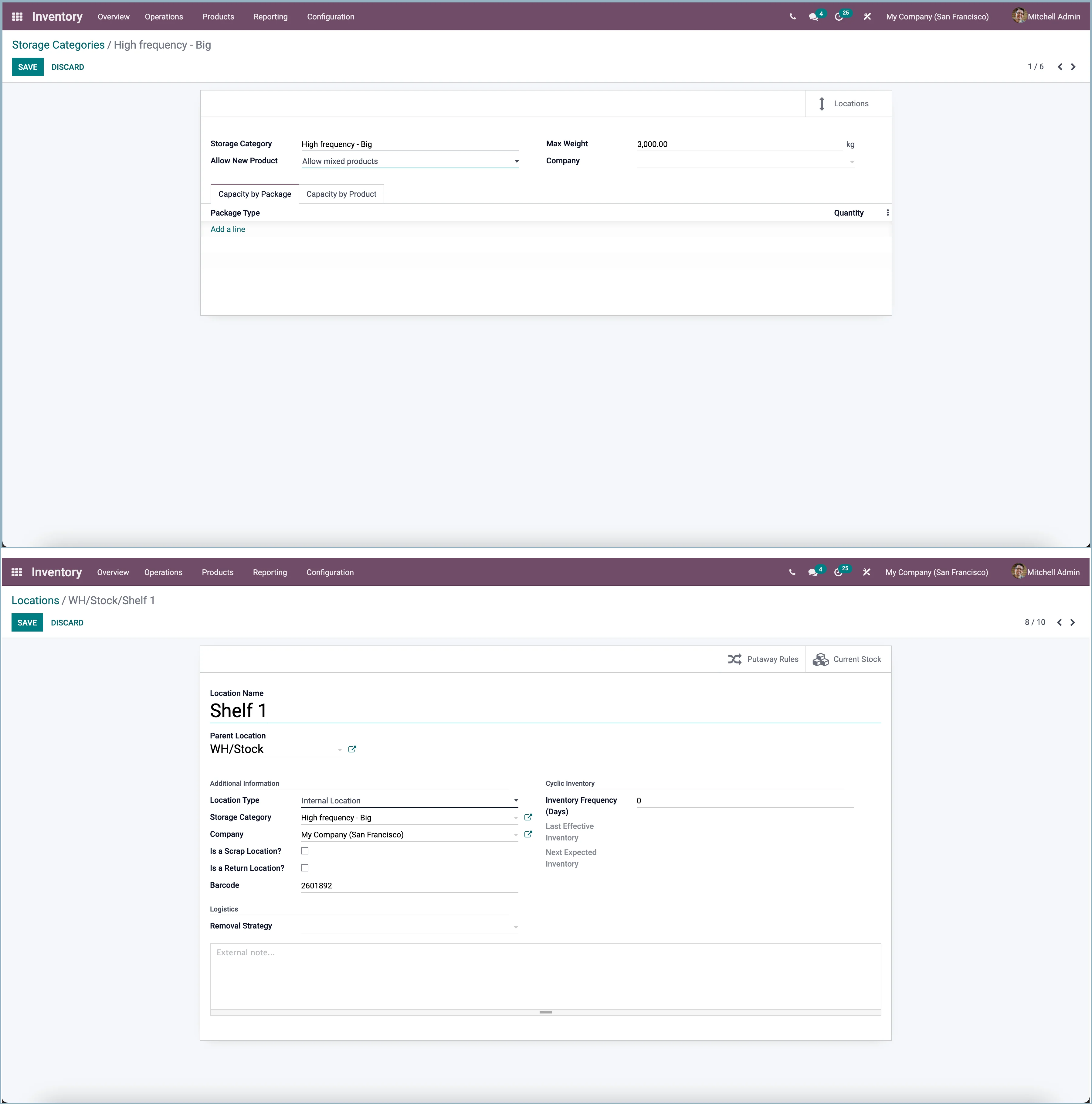
New rules for smart storage have been introduced in Odoo. Warehouse locations can now have a storage category. For each storage category, we can specify the number of products/packages (of a certain package type) that can be stored in the location. We can also set a storage category on putaway rules. When we now apply a putaway rule, we will find a suitable child location of the location, according to the quantity/weight setting on the storage category.
Improved way of reserving stock
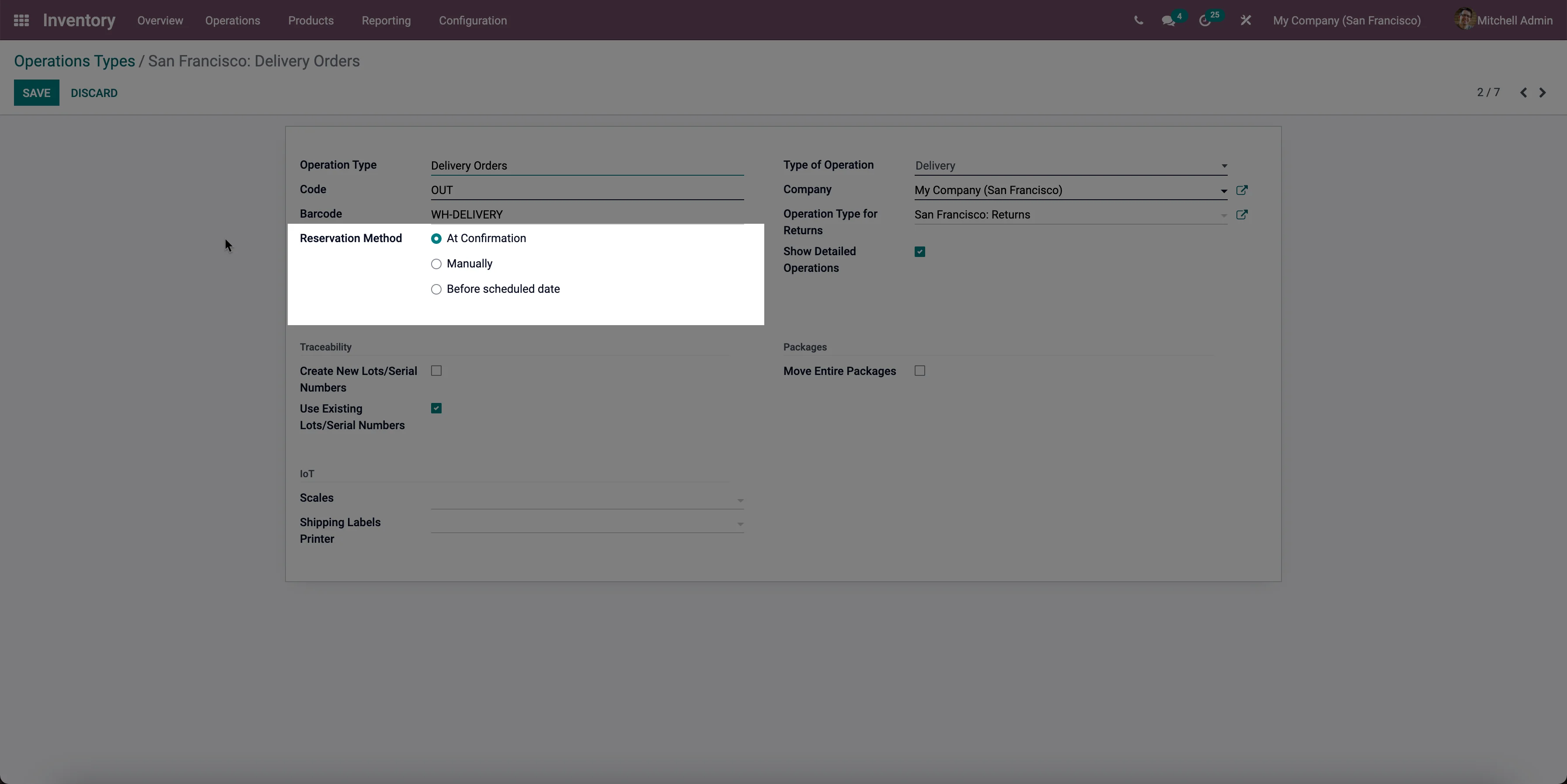
In previous versions of Odoo, stock moves were automatically assigned (available stock was reserved) both when the scheduler was run and when a corresponding stock move that could assign a move was completed. This strictness caused problems when prioritizing moves to be assigned. For example: a delivery with a planned date far in the future could automatically reserve all stock if it was created before another delivery that may have an earlier planned date. To facilitate this, an extra setting has been added to the operation type. The choices are:
- 'At confirmation' = automatic when new stock becomes available or when the scheduler is triggered.
- 'Manually' = user must always click the "Check Availability" button manually (scheduler no longer reserves).
- 'Before scheduled date' = automatic when new stock becomes available or when the scheduler runs within the reservation date of the move. An extra setting has been added to stock reservation, allowing you to set how many days before the planned date the stock must be reserved.
New dropship routes
For scenarios where work is outsourced to a subcontractor, two new default routes have been added, namely:
- Dropship Subcontractor on Order
- Resupply Subcontractor on Order
Receive everything at once, but with a discrepancy
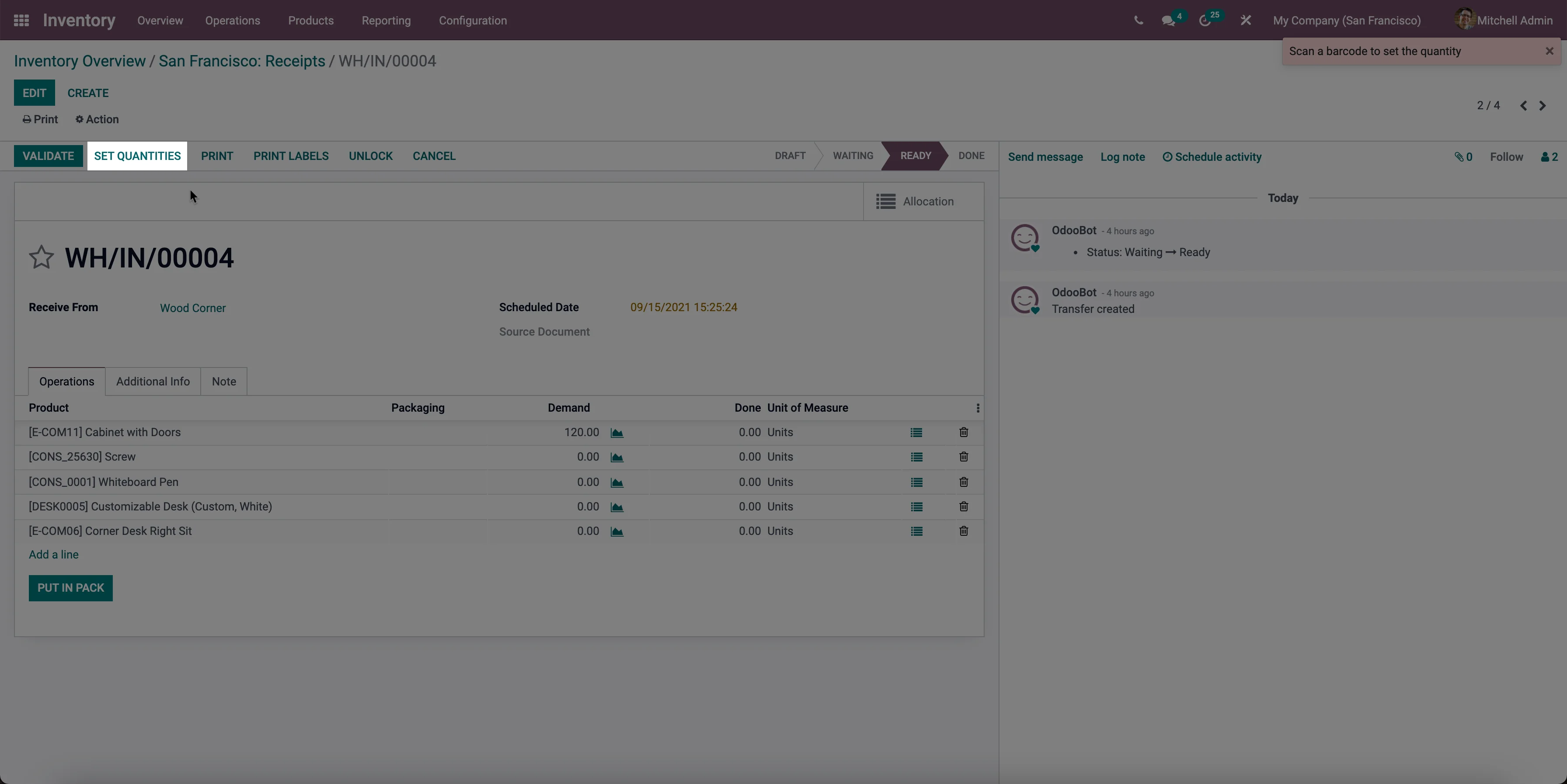
The registration of receipts and deliveries has been simplified. By clicking ‘Set quantities’, you can take over all ordered quantities at once as delivered quantities. After that, you only need to correct the discrepancies.
Replenishment with quantity from the bill of materials
When creating a replenishment, in previous versions Odoo calculated the quantity to order using a default quantity of one or a multiple of one. This has been adjusted for products with a manufacturing route. The quantity is now calculated based on the quantity produced in the bill of materials.
Link to purchase order and sales order from forecast report
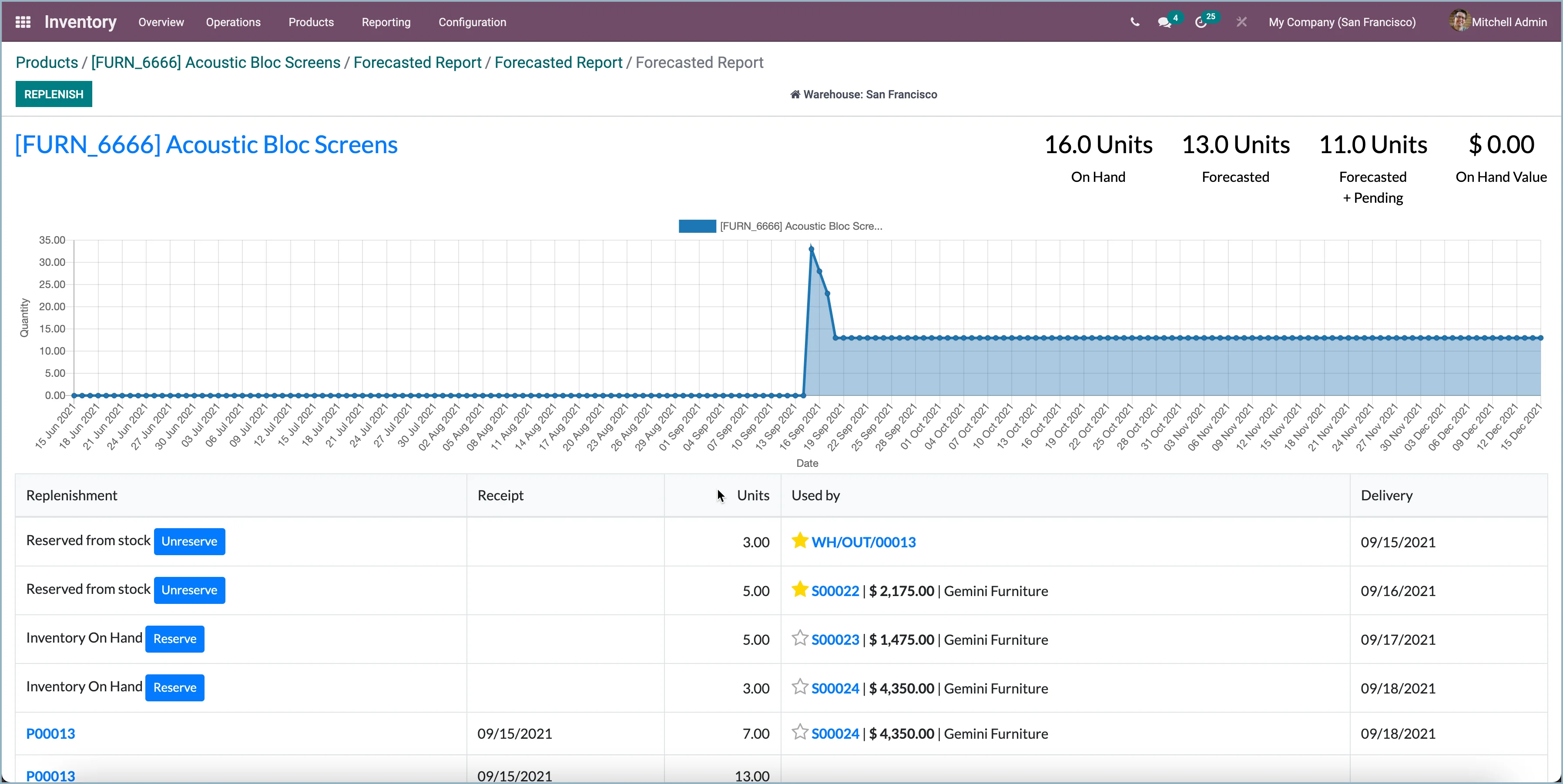
When using replenishment rules (make to stock) instead of make to order rules, there is no clear link between the purchase, sales, and manufacturing orders. From now on, just like on the sales order, an icon is displayed on the purchase order line and manufacturing order to see via the forecast what is linked to what.
Removal from the nearest location
The principle is that when removing products from stock, the only thing that matters is the accessibility of the product. In that case, it is better to pick products stored on the floor rather than on higher levels. In this case, the previous solutions in Odoo were not the most efficient.
Odoo version 15 has a new setting to pick products from the nearest location. Odoo selects items from the 'smallest' location (in alphabetical order), so Odoo assumes that locations are ordered alphabetically depending on how close they are to the ground. Suppose we have the following stock:
- WH/stock/shelf 2
- WH/stock
- WH/stock/shelf 1
Quantities are checked in the following order:
- WH/Stock (because of the shortest name for the same stock)
- WH/stock/shelf 1 (because of alphabetical order)
- WH/stock/shelf 2
Print product labels
A new wizard has been added on the product, receipt and delivery for printing labels. A number of common formats in PDF or ZPL code have been added.
Reduce ordered quantity
It was always possible to increase the ordered quantity, but now it is also possible to decrease the ordered quantity on a sales order. If a purchase proposal has also been created and has not yet been confirmed, it is reduced as well.